
What is the difference between offers and rates?
While the rates allow you to individually manage prices and availability for the same type of room, with the offers, you can include added values, extra services or additional discounts.The system is smart when deciding what to show: it will compare offers and, for equal conditions, it will hide those that do not make sense for the user because they are more expensive. "Equal terms" means the same cancellation, include the same thing, have the same conditions, etc.
This is something it does very efficiently and saves complexity for the user by reducing unnecessary options.
DON'T FORGET
The system compares offers and groups those with the same tariff, but not between tariffs.
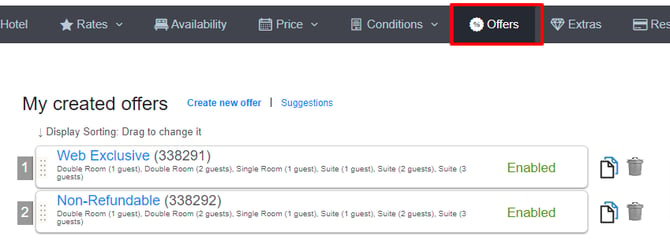
The offers in 6 steps
You can save the offer as a draft to activate it at any time, or activate it.
It can always be active, or you can mark in the calendar the dates you want it to be active. So that it can be offered to bookings that enter on those dates, leave on those dates, or be offered to bookings that pass through those dates even if their entry or exit date does not have the offer activated.
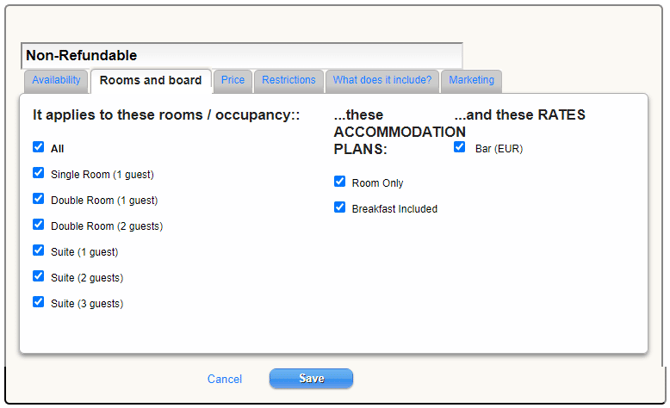
2. Rooms and Board. Choose to which type of rooms, regimes and/or rates you want the offer to be applied.
DON'T FORGET
If there is any closure applied to a room, board or rate, the offer will not appear. Similarly, if the occupancy, board or rate has no price or the room type is not available, the offer will not appear.
3. Price. Set the price for your offer.
If your offer has different discount percentages in the same period, you can add date of stay exceptions in the calendar.
Increase. Useful for certain packages. For example, when a package includes an extra (in the "what's included" section), the price of the extra is shown as struck through to the user, and is not automatically added. With this increase, we can raise the value of the package by the amount of the extra price. Set it per person or per room.
Once (e.g. tourist bus) or per night (e.g. spa circuit). You can differentiate the price in € for adult or child. You can also use the increase with a negative discount so that your offers do not apply to the board basis.
One free night every X nights booked. Can be the cheapest of X nights, or the last of X nights.
Extra discounts
For nightly or weekend bookings. Are OTAs offering your hotel cheaper at night without your permission?
-Use the extra "nightly or weekend" discount on your existing offers.
-If needed, you can add date-specific exceptions as with other discounts.
For long stays, do you have multiple "long stay" offers, one for each period? Consolidate them. Easier for you to manage and simpler for the user.
For early bookings, do the same if you have multiple early booking offers, one for each period...
By country. Does your website need to compete more in certain countries? (for example, because you don't have intermediaries that cover certain geographies well)
Simply include the extra discount with the new "by country" option to all your existing offers.
-By device.
-Last minute.
DON'T FORGET
Discounts are not cumulative, each one is applied on top of the previous one.
The five possible additional discounts (early booking, long stay, device, last minute, and by country) exist in both the pricing tab and the restrictions tab. While in the former the offer is always visible and the extra discount is only applied when the conditions are met, in the latter case, if the conditions are not met, the offer will not be displayed.
- Available only for customers with corporate / promotional code. We will associate this offer when we verify the corresponding corporate code in the code tab. Therefore, it will only be displayed to customers who enter that code.
- Advanced booking.
- Different payment or cancellation policy. Choose the policy you want to associate with the offer.
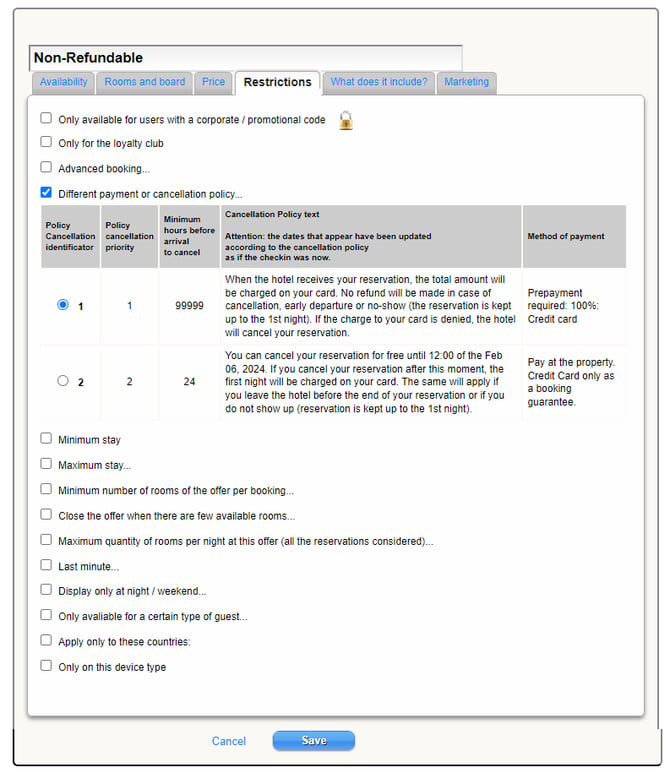
- Minimum stay. We can include "consider days of stay" when we want the offer to apply, even if it is not open every day.
- Maximum stay. You can choose whether to display the offer for the days indicated here, even if the total of the query exceeds the maximum stay, or not to display it at all.
- Minimum number of offer rooms per booking.
- Close when there are few rooms left.
- Last minute. Mark the hours before check-in from which you want to display the offer.
- Visible only at certain hours.
- Only available for certain types of people.
- Apply only to these countries. Restrict which countries can enjoy the offer.
- Only on this type of device. Restrict according to the device (tablet, mobile...).
5. What's Included
You can choose from the existing extras (by checking the corresponding box). These extras are created in the extras section and are automatically displayed here. Alternatively, you can choose "other" and specify the items included. Remember to add the corresponding text for each language on your website.
If two offers provide different items (with different text input) under "other," the system will display both. This means that under equal conditions, even if one offer has a more advantageous price, it will be identified that they offer different elements when different texts are found under "other."
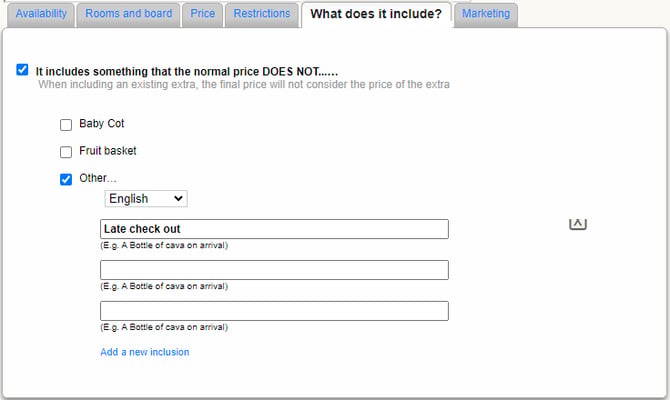
However, if two offers include the same text, under equal conditions, the system will choose the best price for the user. It will interpret it as the same extra, by identifying identical text characters.
DON'T FORGET
By including the extra, its price will be displayed crossed out, and its amount will not be added to the base. Therefore, if I want to allocate the cost of the extra to the offer, I must add it to the price as an increase.
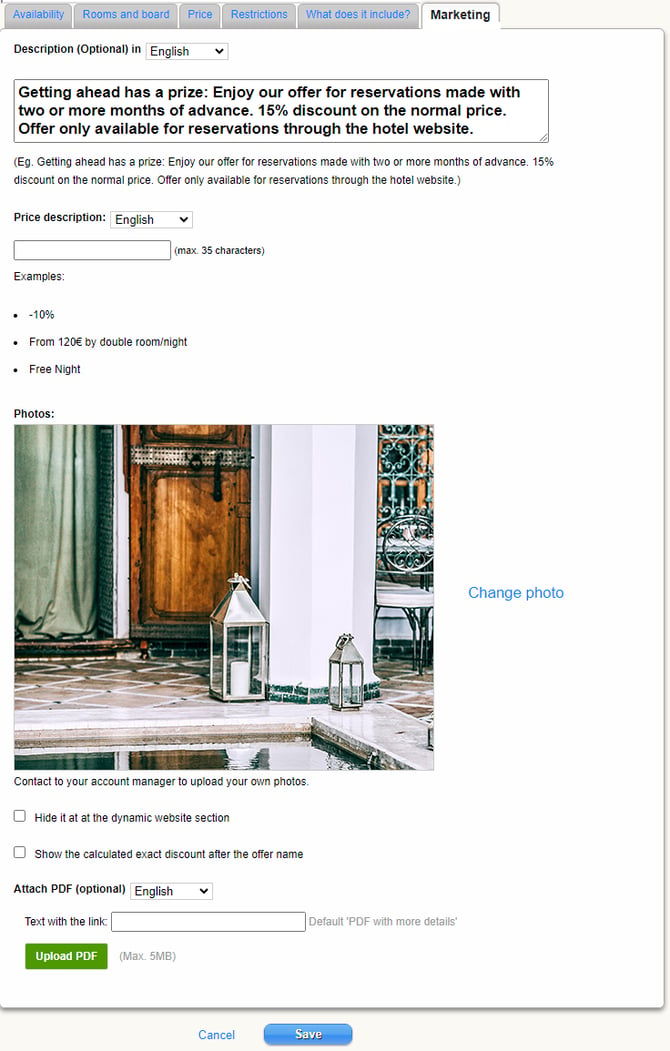
6. Marketing
If you have your website with us, remember to only use the images that appear in the section YOUR PHOTOS in the gallery of offers.
If your offer includes any extra or package, you can attach an optional PDF.
DON'T FORGET
to translate your offers, including their contents and marketing texts, into all the languages on the web.
Also, remember to translate the offer titles!
For further information, please contact [email protected].