
The Extras appear in the second booking step for all searches that meet the restrictions you have configured for each extra.
Follow our 7 simple steps to see how to do it.
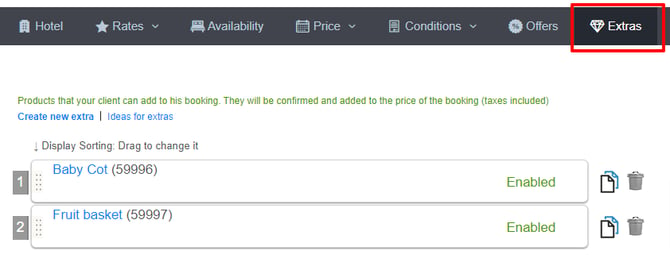
Extras in 7 steps
-
Name: Remember to add the name in all languages on your website.
-
Availability: Choose whether to activate it or leave it as a draft. If you activate it, you can offer it at all times or filter the dates on which you want to offer it (whether by stay, arrival, departure, or booking date). If you leave it as a draft, you can include the extra in any of your offers in the "What's Included" tab, and it will be offered whenever the customer chooses that rate (in this case, by including the extra, the price is crossed out and offered for free). You can also include active extras in your offers.
-
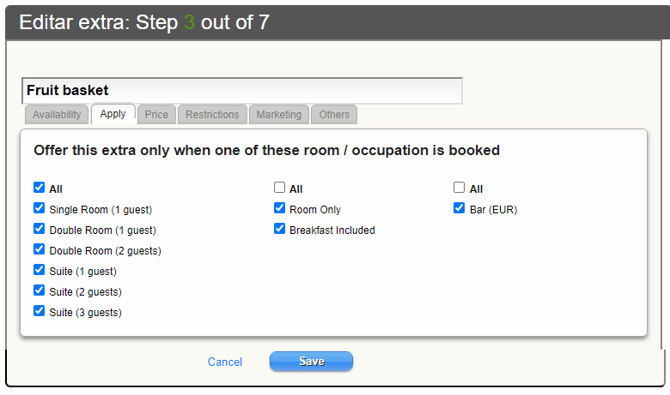
To Which It Applies: Choose the level at which you want to offer your extra; you can filter by room / occupancy, by board, or by rate. Maximum flexibility.
NOTE: If you create an extra with a price of 0 and leave it as a draft, you must mark it in the first option: per room/once.
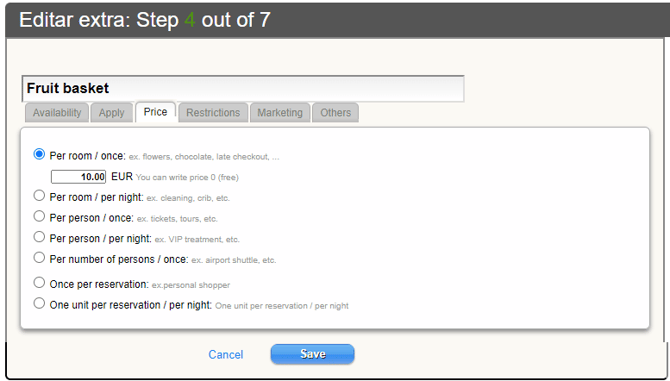
4. Price. Choose the option that suits your extra.
- Per room / once: e.g. flowers, chocolates, late check-out.
- Per room / per night: e.g. cleaning, cot, ... The customer can choose the number of nights they want it for.
- Per person / once: e.g. tickets, tours, ... You can choose the price per person / adult / child if you have different age ranges.
- Per person / per night: e.g. VIP treatment. You can choose the price per person / adult / child if you have different age ranges, and the number of nights they want it for.
- Per number of people / once: e.g. airport transportation, ...
- One per reservation: e.g. voluntary contribution, NGO.
- One unit per reservation/ per night: e.g. Car rental. The customer can choose the number of nights they want it for. It is possible to create an extra with a price of 0, very useful if you want to include some free concept as an extra to give it visibility.
Check our section of ideas for extras in the extranet if you need more details.
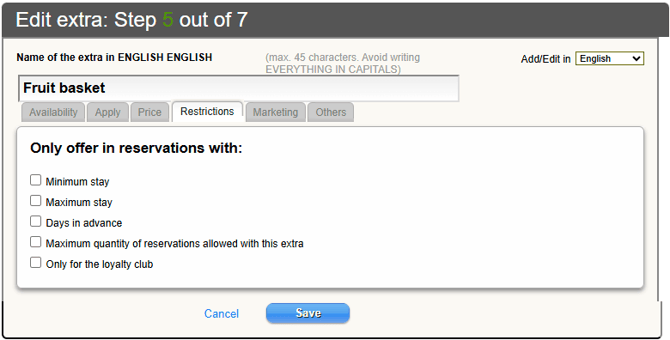
5. Restrictions. Only offer to reservations with: minimum stay, maximum stay, or "x" days in advance.
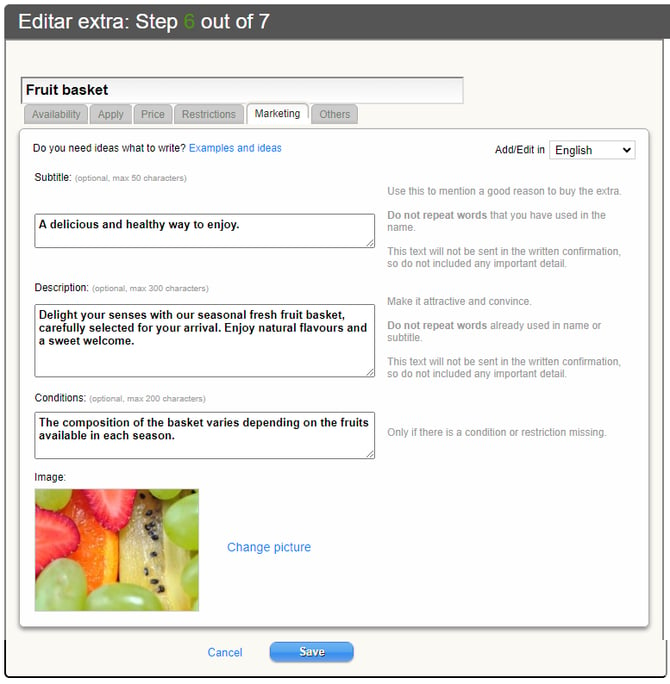
6. Marketing. Don't forget to complete this section. Here we customise the way we present the extra to the customer. Follow the instructions on the extranet and describe briefly, directly, and attractively what you offer. You can add a photo from our image bank or request our support team at [email protected] to upload one from your own files.
7. Others. Indicate whether the extra is offered by the hotel itself or an external provider (tour route).
DON'T FORGET
Availability is specified for each room type.
If AVAILABILITY = 0, THE ROOM TYPE IS NOT DISPLAYED.
If I create an offer for a room type and that room type has availability = 0, the offer will not be displayed.
Availability is a fundamental requirement for the application of the rest of the concepts.
The price is specified for each corresponding occupancy within the room type.
If PRICE = 0, THE CORRESPONDING OCCUPANCY IS NOT DISPLAYED.
If I create an offer applicable to an occupancy and the price of the occupancy is 0, the offer will not be displayed.
Price is a fundamental requirement for the application of the rest of the concepts.