
-
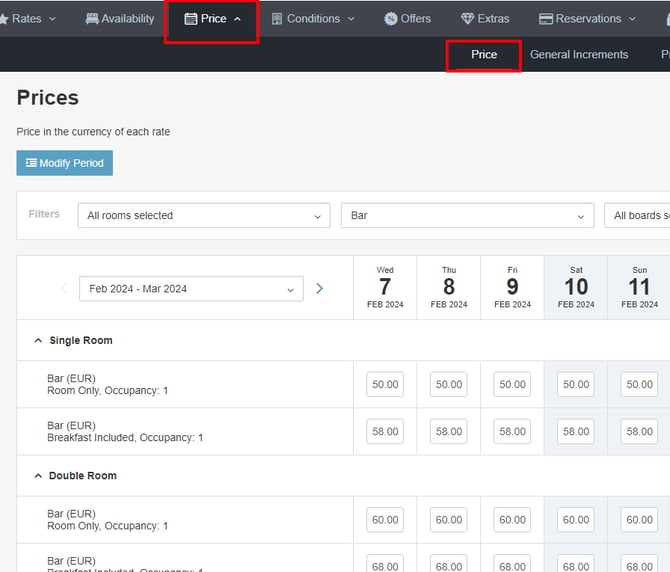
In this section, you can load and review the prices of all your rates.
-
With the filters, you can select the criteria to view the information in the most convenient way.
-
The rates appear with the internal name you have configured in the Rates section.
If you work with a Channel Manager, the upload will be done from there.
You should NOT perform manual uploads if using Channel Manager, as the data will be overwritten when the channel is updated.
DON'T FORGET
If there is no price entered, the occupancy will not appear in the dropdown of the engine.
In addition, when setting up a rate, you can choose whether the price should be displayed with or without taxes included.
Initial price load without Channel Manager step by step
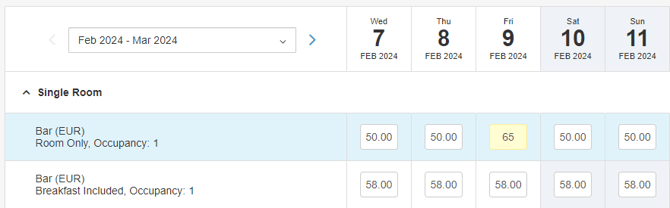
To modify the price for a specific day, you can directly enter the amount in the corresponding box, which will be highlighted in yellow, then click save.
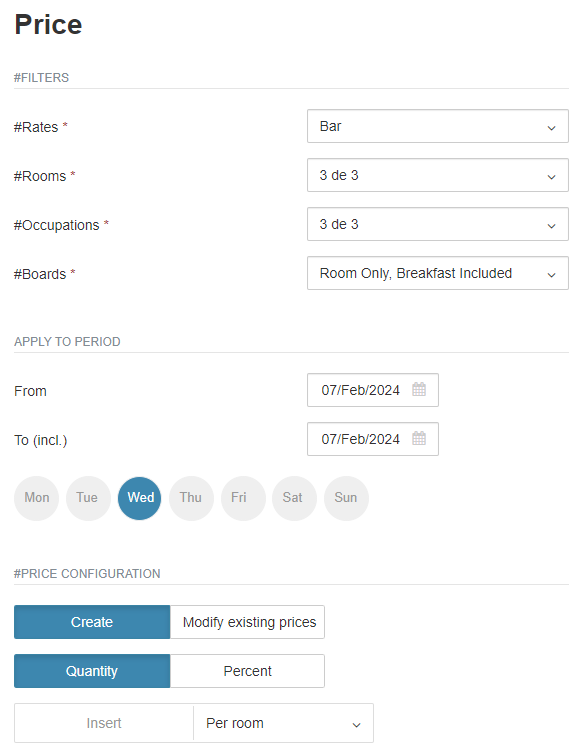
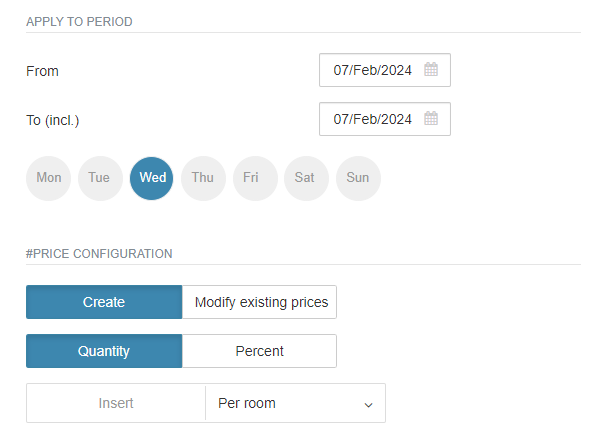
In both cases, the first step is to tell the system for which rate, room, occupancy, regime and dates you want to apply the change.
Then you will have to say whether it is a charge or a price change and indicate the amounts.
From scratch:
Select Create, then Quantity.
Enter the amount you need to load as the base price and choose whether it should be charged per room or per person.
If you choose to charge per person, the system will give you the possibility to enter the supplements/discounts for the different extras.
There are two options for loading the surcharges of the two categories:
-
Make a generic upload with the base price for all categories and then alter the price for each category.
-
Make an individual charge for each category by filtering it at the top of the screen and calculating the final price, including the supplement.
DON'T FORGET
For a price to be saved you must assign the room/occupancy to the rate beforehand.
If not, you can load it manually, but it will not be saved in the extranet.
Check that the prices have been loaded correctly on the main screen.
The price is specified for each corresponding occupancy within the room type.
If PRICE = 0, THE CORRESPONDING OCCUPANCY IS NOT DISPLAYED.
If you create an offer applicable to an occupancy and the occupancy price is 0, the offer will not be displayed.