
Do not manually input any data when using the Channel Manager, as the information will be overwritten when the channel updates.
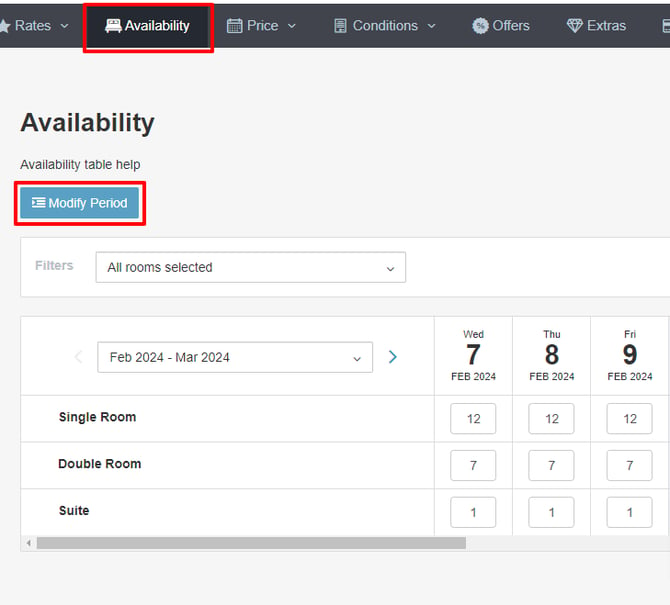
If you do it manually, you can modify the quota by entering the amount directly in the corresponding box for the day and type.
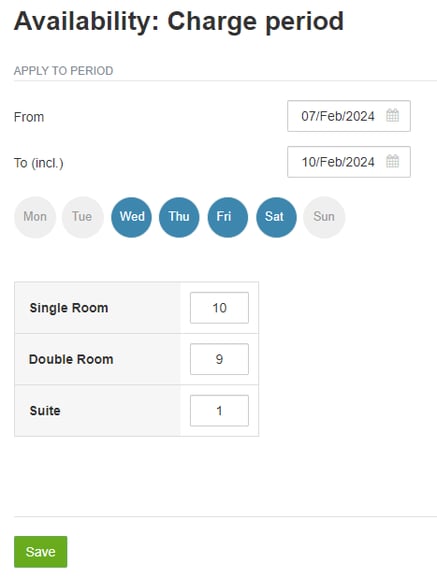
The box will turn yellow, indicating that the system has recognized the change, but it is not yet saved. Once you have finished, click Save. You can also modify a period in bulk from the configurator.
If you set the availability to zero, sales will be closed. If your establishment is closed for the season and you want the system to show the next opening date in addition to the sales closure, you will need to set the availability to zero.
Just like with prices, there is the option to do a bulk upload for a specific period of time.
DON'T FORGET
If the hotel cancels the reservation, the availability does not automatically return.
If the user cancels the reservation, the availability returns automatically, unless the availability was manually closed (in red).
If you create an offer, you must ensure that the room type it applies to has availability. Otherwise, it will not be displayed.
Availability is specified for each room type.
If AVAILABILITY = 0, THE ROOM TYPE IS NOT DISPLAYED
If you create an offer for a room type and that room type has availability = 0, the offer will not be displayed.
Availability is a fundamental requirement for the application of the rest of the concepts.
For further information, please contact [email protected].