Dynamic Sections
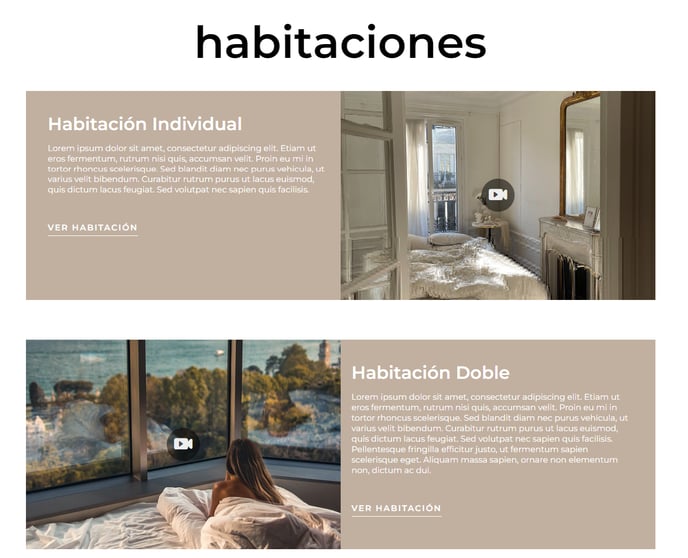
Before explaining how to change a text on your website, it is important to remember that there are two dynamic sections, which means their content (texts and images) is managed from the corresponding sections of the extranet, not from the website itself. These are the OFFERS and ROOMS sections.
To modify this content, you just need to access the extranet and make the necessary changes. In a few minutes, it will be reflected on the website and in the engine.

Web Texts
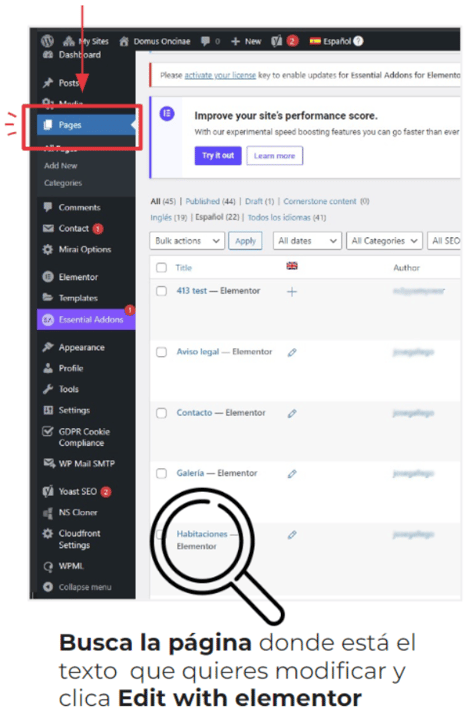
Within your WordPress, on the left-hand column, click on Pages.
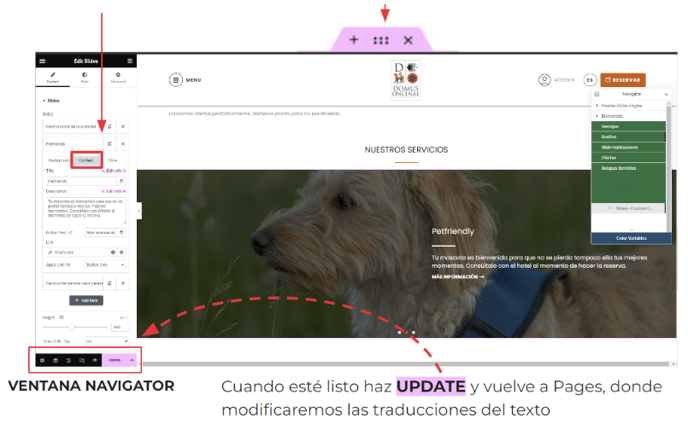
Click on the text or section you want to modify, or search for it in the navigator window (REMEMBER, it's at the bottom left).
When it's a slide, you can change it by clicking on that item and within the "content" tab.
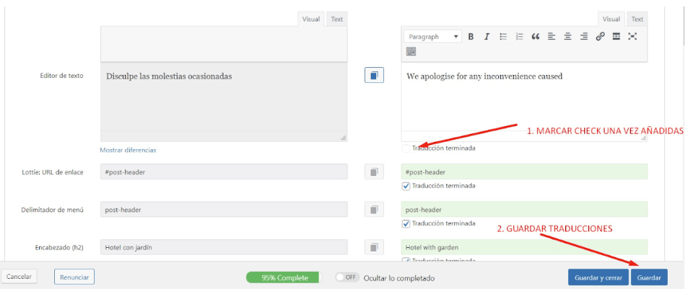
Changing / adding translations
By clicking the pencil icon or any of the others indicated, you will enter the translations for that page in the selected language. The translations pending modification will not have a check mark below, you must complete them (remember to use Ctrl+Shift+V if you copy them from another document), mark those checks, and save (at the bottom).